
Wide view and transparency: fitting the Vizir window to your screen
Compact or wide layout, background transparency, explanations right under the lines and the monitor picker: how to fit the Vizir window to your screen and your interview.
The Vizir window floats over your video call and your editor. Its size and transparency decide how easy it is to read the hint without losing sight of the interviewer. In version 1.3 the window was redesigned: it's now a single card with two layouts, and the background transparency is set with a slider.
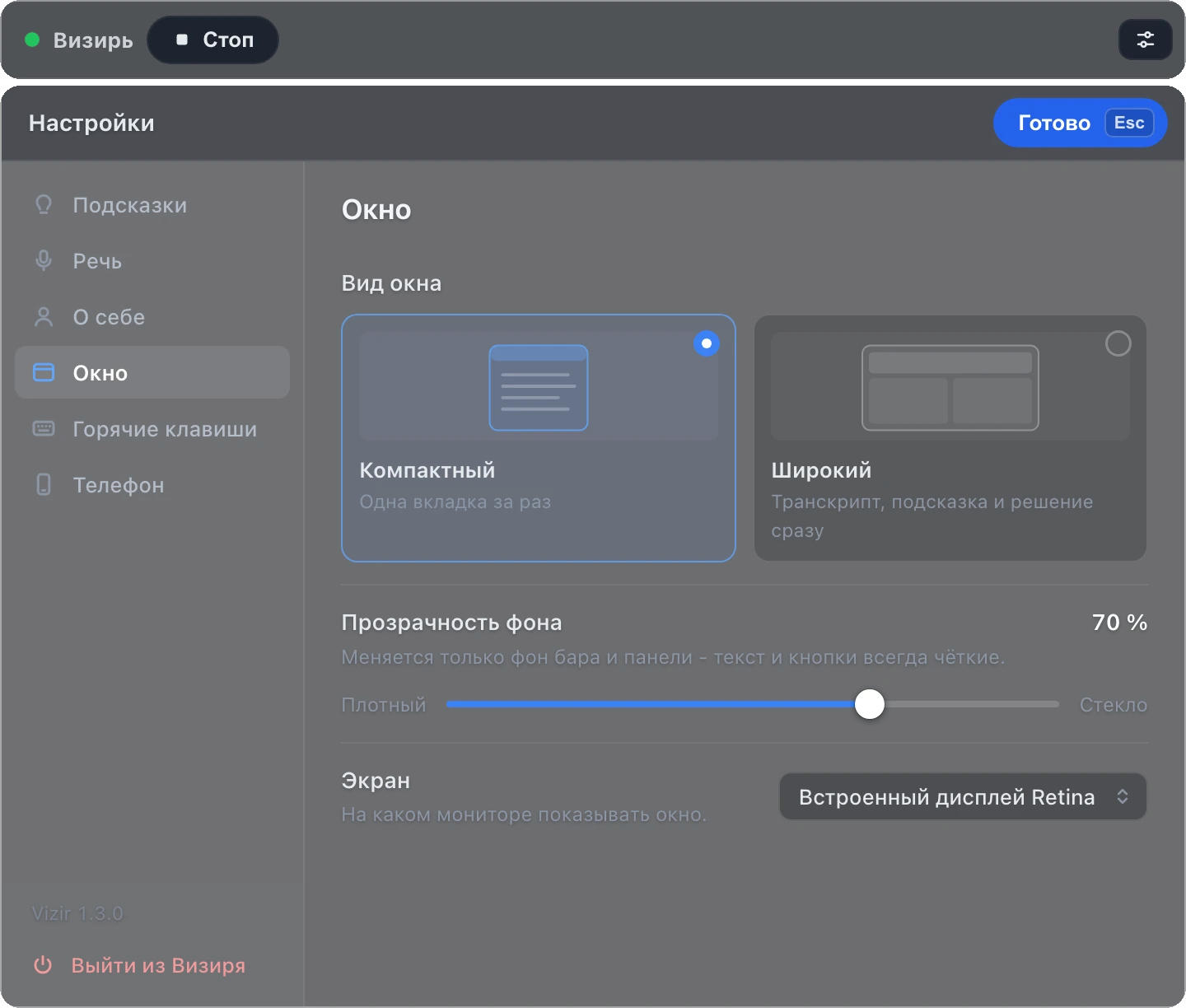
The app interface is in Russian, so you'll see the Russian labels in quotes with a translation. Everything below lives in one place: the gear in the bar, then “Настройки” (Settings) → “Окно” (Window).
Compact: one tab at a time
The window starts out compact. On top is the bar with the “Старт” (Start) button, below it three tabs: “Транскрипт” (Transcript, ⌥1), “Подсказка” (Hint, ⌥2) and “Решение” (Solution, ⌥3). One tab is on screen at a time, and you switch with the keys. If a hint arrives in Auto mode while you're looking at the transcript, a dot lights up on the Hint tab.
Under the tabs sits a status line: the current state (for example “слушаю”, listening, in Auto mode) and the keys that work right now.
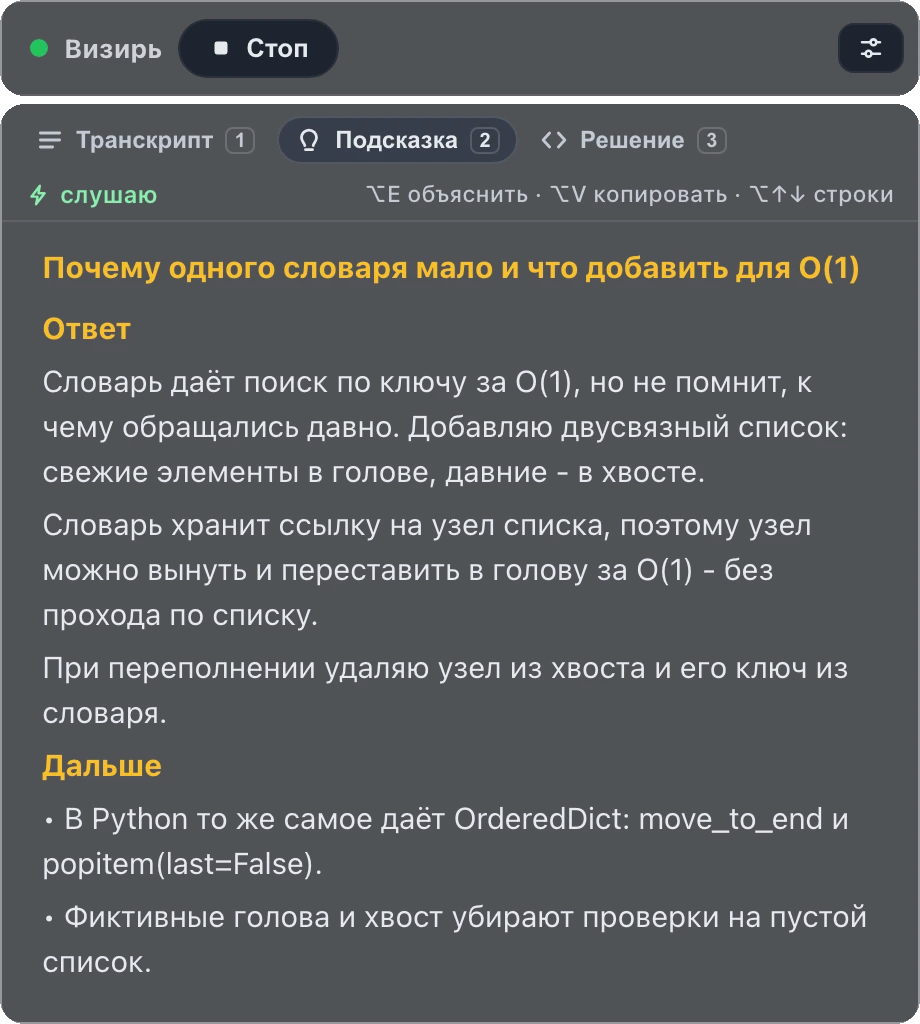
Compact works best on a smaller screen: a laptop, or when you want the window small and next to the camera without covering half the call.
Wide: everything at once
In the settings it's described as “Транскрипт, подсказка и решение сразу” (Transcript, hint and solution at once). The transcript runs across the top, and under it two cards sit side by side: the hint on the left, the solution on the right. Each has its own header with its key and its own status line.
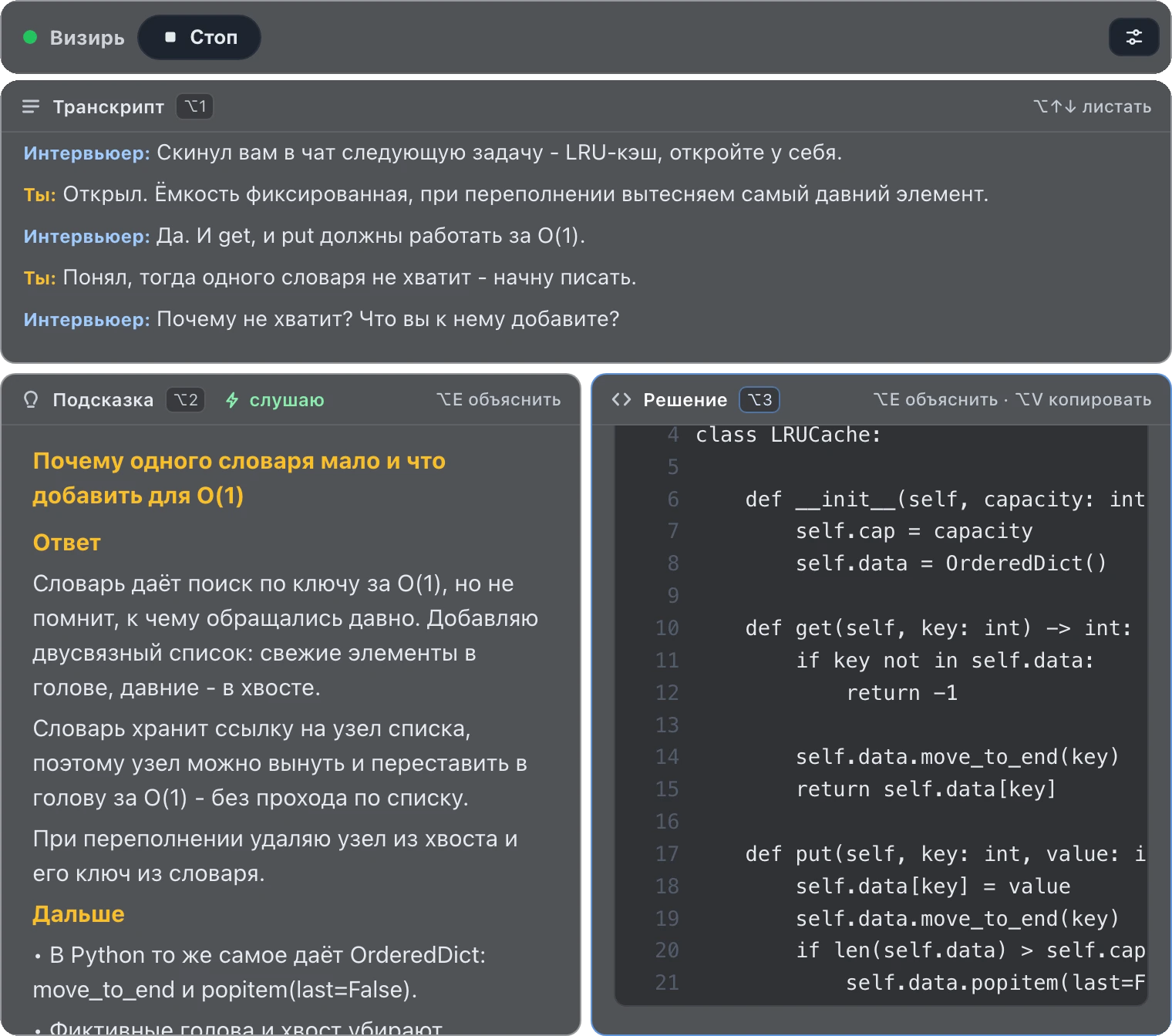
Wide works best on a big monitor and in coding interviews: the question from the transcript, the hint about the approach and the solution code are all visible at once, with nothing to switch.
Which one to pick
| What you have | Pick |
|---|---|
| A laptop, the window needs to stay small | Compact |
| A conversational interview or a work call | Compact |
| A big monitor with room to spare | Wide |
| Live coding, the task is on screen | Wide |
You switch layouts under Settings → Window → “Вид окна” (Window layout). Try both on a test call before the real one.
Background transparency
The “Прозрачность фона” (Background transparency) slider runs from “Плотный” (Solid) to “Стекло” (Glass), with the current value in percent next to the label. As the app itself puts it, only the background of the bar and panel changes - text and buttons always stay sharp.
How to pick a setting:
- a light page behind the window - a document, a browser with a white background: move the slider toward Solid so the hint reads more clearly;
- a dark editor behind it: you can go closer to Glass, and the window covers less of what's underneath;
- set it by eye with the call and the editor open, the way they'll be during the interview.
On some Windows computers the window runs in a graphics compatibility mode. Transparency isn't available there, the background stays solid, and the app says so right under the slider.
Explanations right under the lines
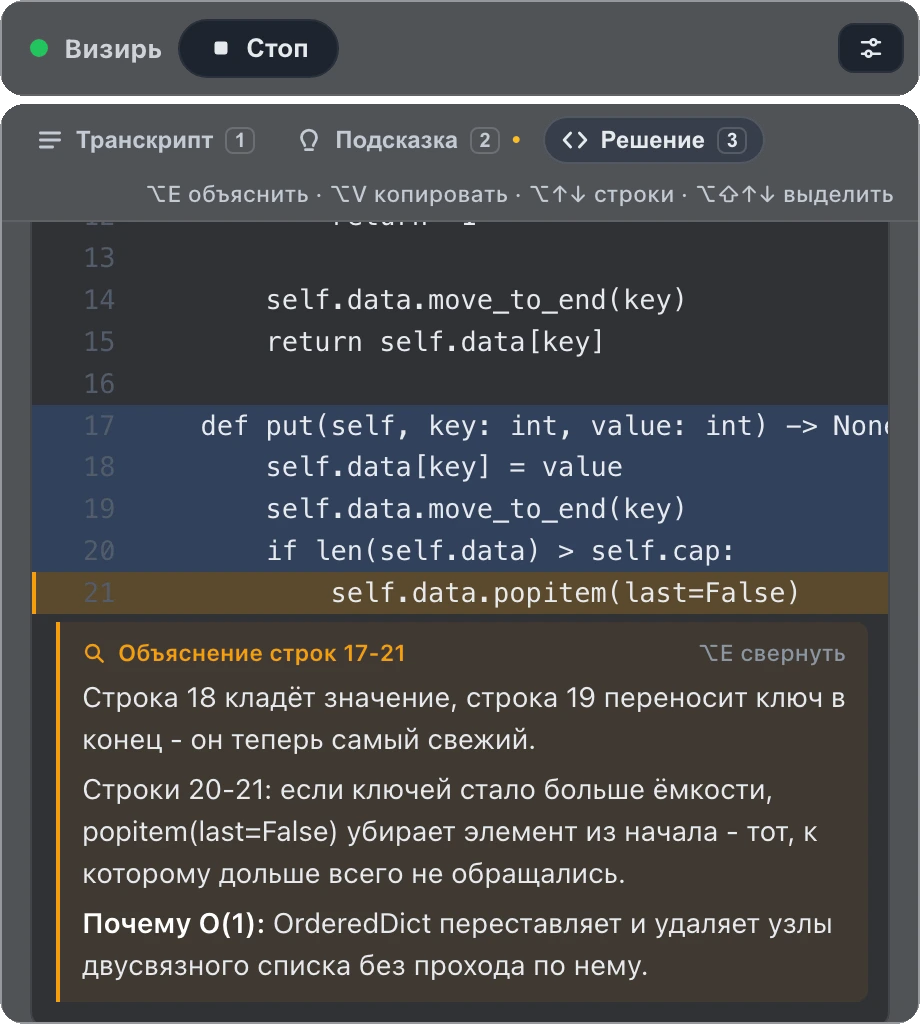
The explanation used to live in a separate tab you had to switch to. Now it opens in the same place as the answer.
- In Hint or Solution, select lines with ⌥⇧↑ and ⌥⇧↓.
- Press ⌥E - an explanation of exactly those lines opens right under them, like a comment in a code review. The lines below move down.
- Press ⌥E again to fold it.
This works in both layouts. ⌥↑ and ⌥↓ move through the lines of the answer, and ⌥V copies the selected lines or the whole code.
Position, size and screen
The window is built for the keyboard: the mouse is only needed for Start, the gear and the settings themselves. Everything else is keys:
- ⌥W, ⌥A, ⌥S, ⌥D move the window up, left, down and right;
- ⌥+ and ⌥- make it bigger and smaller;
- ⌥\ hides the window and brings it back.
If you have more than one monitor, Settings → Window → “Экран” (Screen) picks which one shows the window.
On Windows it's Alt instead of ⌥ throughout: Alt+W, Alt+E and so on. Any of these shortcuts can be reassigned - there's a separate post on hotkeys.
Windows: the same at any scale
Windows laptops often run at 125 or 150% display scale. In 1.3 the Vizir window looks the same at any scale from 100 to 200%, and its corners are rounded, like on macOS.
Who else sees the window
Only you see the hints. The window stays out of browser screen sharing. Where the whole screen is captured, hints and the transcript can go to your phone companion, set up under Settings → “Телефон” (Phone). A detailed visibility map by app and OS is on the visibility page.
Everything else that's new in 1.3 is in the update overview.
FAQ
How do I switch Vizir to the wide layout?
Will text get harder to read if I make the window more transparent?
Where did the Explanation tab go?
Read next
Vizir 1.3: Hints Arrive on Their Own - What's New
What's new in Vizir 1.3: Auto mode that catches the interviewer's question, a wide window layout, background transparency, custom hotkeys and a crisp window at any Windows scale.
November 17, 2026Vizir Auto Mode: How It Knows a Question Was Asked
Hints without a keypress: how to turn on Auto mode in Vizir, what it listens for, when it stays quiet, when ⌥↩ is still better and how it looks in a real interview.
November 17, 2026Vizir Hotkeys: Reassign Any Shortcut or Reset to Default
Every Vizir hotkey for macOS and Windows, how to reassign any shortcut, which combos the app won't let you take, and how to put everything back to default in one click.
November 17, 2026Install Vizir before you need it
Free access to start, no card required. Five minutes to set up now - and the hint is there when the call matters.