
Auto mode: how Vizir knows the interviewer asked a question
Hints without a keypress: how to turn on Auto mode in Vizir, what it listens for, when it stays quiet, when ⌥↩ is still better and how it looks in a real interview.
The usual way to use Vizir goes like this: the interviewer asks a question, you press ⌥↩ (Alt+Enter on Windows), and a hint shows up in the window. Since version 1.3 there's a second way - Auto mode. The hint arrives on its own once the interviewer finishes the question, so you don't have to reach for the keyboard at the tensest moment of the conversation.
The app interface is in Russian, so below you'll see the Russian labels in quotes with a translation.
How to turn it on
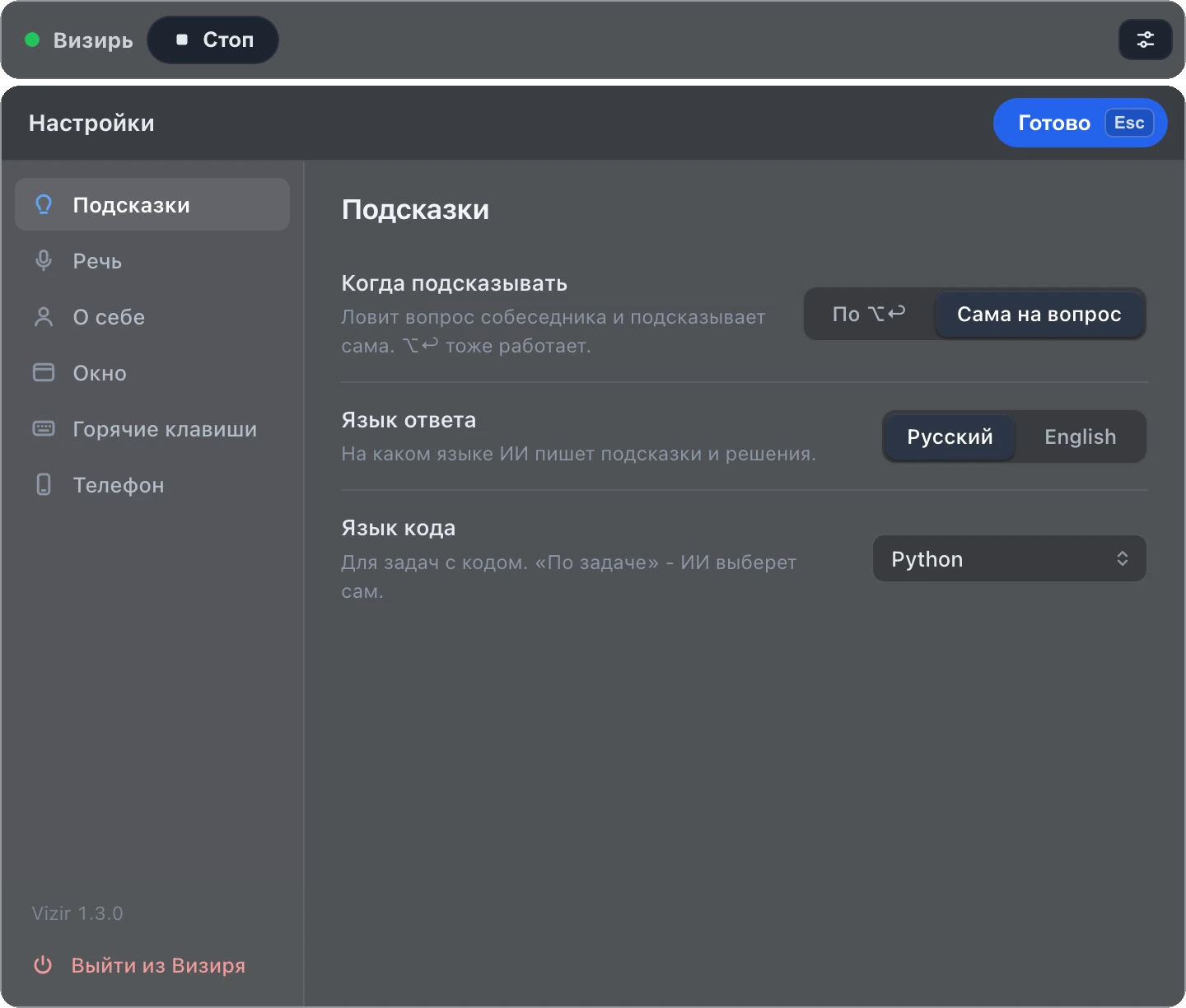
- Click the gear in the Vizir bar to open the settings.
- Go to “Подсказки” (Hints), the “Когда подсказывать” (When to hint) row.
- Pick “Сама на вопрос” (On its own) instead of “По ⌥↩” (On ⌥↩).
A note appears under the switch: it catches the interviewer's question and hints on its own, and ⌥↩ still works. To turn Auto off, switch back to “По ⌥↩”.
Auto is off by default. After the update Vizir keeps working the old way until you choose “On its own” yourself.
How Vizir knows a question was asked
Vizir hears the conversation on two channels: “Интервьюер” (Interviewer) is the call audio, “Ты” (You) is your microphone. Every line in the transcript is labeled with who said it. That split is what makes Auto possible:
- Auto follows the Interviewer channel and waits for the interviewer to finish speaking;
- then it decides whether that was a question for you or just talk: a greeting, a pitch about the company, someone thinking out loud;
- if it was a question, it prepares a hint; if not, it stays quiet.
Your own lines never trigger a hint. If you ask the interviewer about the team or the stack, Vizir won't try to answer for them.
Auto is tuned to stay quiet rather than throw in a hint you don't need. The reasoning is simple: a missed question costs you one press of ⌥↩, while a stray hint in the middle of your answer just throws you off.
What the status line tells you
Above the hint there's a thin status line. In Auto mode it shows what's happening right now:
- “слушаю” (listening) - Auto is on and waiting for a question;
- “готовлю ответ” (preparing an answer) - a question was caught and the hint is on its way;
- “ответ не нужен - ⌥↩ всё равно” (no answer needed - ⌥↩ anyway) - Vizir decided the line didn't need an answer; disagree, and press the hotkey;
- “новый вопрос - ⌥↩ показать” (new question - ⌥↩ to show) - a new question came in while you're still reading the previous hint or answering out loud. Vizir doesn't wipe what you're reading: the new hint waits, and ⌥↩ brings it up right away;
- “не слышу собеседника” (can't hear the interviewer) - there's been no sound on the Interviewer channel for a while; check that the call audio is actually playing on this computer.
If Auto pauses, the reason shows up in the same line. On Windows these messages say Alt+Enter instead of ⌥↩.
What it looks like in an interview
Take a typical technical interview with a coding task.
Before the call. Fill in Settings → “О себе” (About me): who you are, your experience and stack, plus the job and its requirements. Both fields go to the AI with every question, so the hints are about your experience rather than a generic candidate. Pick “On its own” and press “Старт” (Start).
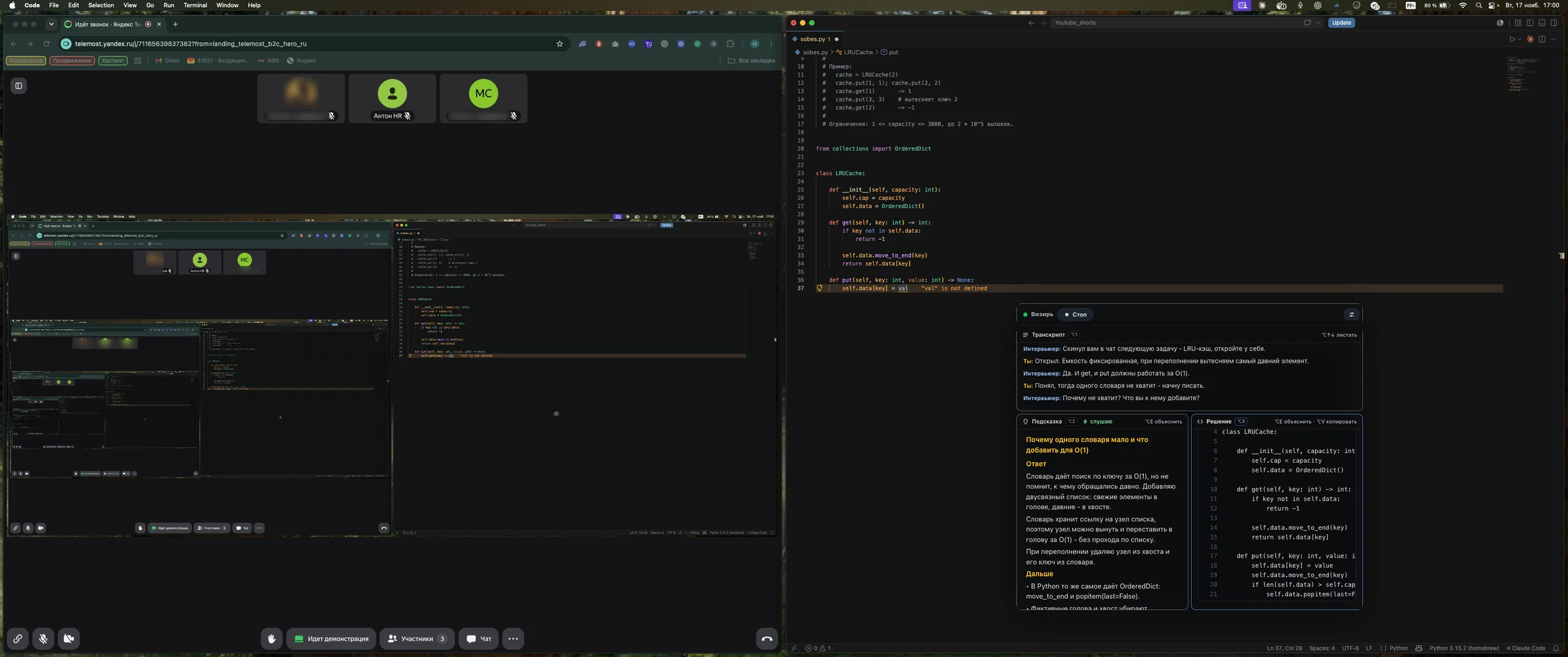
Introductions. The interviewer talks about the team - not a question, so Vizir stays quiet. Then: "Tell me about the hardest project you've worked on." While you gather your thoughts, a hint with talking points appears in the window.
The task. The interviewer drops the problem in the chat. This is where hotkeys shine: ⌥C attaches a screenshot of the problem, ⌥⇧C attaches selected text, and ⌥↩ sends it - the answer lands in the Solution tab.
A follow-up. While you're writing code, the interviewer asks: "Why isn't a single dictionary enough?" That's a question, so Auto prepares the hint by itself. Your hands stay on the editor's keyboard.
Walking through the code. "What does this line do?" Select the lines in Solution and press ⌥E - the explanation opens right under them.
When the hotkey is better
Auto doesn't replace ⌥↩, it adds to it. The hotkey is the better choice when:
- the task is on screen or in the chat. Auto listens to the conversation, not the screen. A screenshot with ⌥C or selected text with ⌥⇧C, then ⌥↩, is the shortest way to a solution;
- the question got buried in a long monologue or was asked in passing, and Auto chose to stay quiet;
- you want quiet. For stretches of a conversation where you don't need hints, it's simpler to stay on “По ⌥↩” and call a hint only when you really want one;
- the single stream is on instead of two channels - then Auto isn't available at all.
Why “On its own” can be unavailable
Under Settings → “Речь” (Speech) there's a “Один поток вместо двух каналов” (One stream instead of two channels) switch. With it on, the transcript shows “Спикер 1” and “Спикер 2” (Speaker 1 and 2) instead of Interviewer and You: Vizir no longer knows which speaker is the interviewer, so it can't catch their questions. That's why “On its own” can't be selected while the single stream is on, and the app says so right there. It also gives you a button that takes you to the right switch in Speech.
If you want hints to arrive on their own, keep the two channels.
In short
- Turn it on under Settings → Hints → “Когда подсказывать” (When to hint) → “Сама на вопрос” (On its own); it's off by default.
- It catches the interviewer's questions, ignores your own lines and errs on the side of staying quiet.
- ⌥↩ always works: for missed questions, for tasks from a screenshot and in single-stream mode.
Everything else that's new in 1.3 is in the update overview.
FAQ
Is Auto mode on by default?
Will Auto give me hints for my own questions?
What if Auto misses a question?
Why can't I select “On its own”?
Read next
Vizir 1.3: Hints Arrive on Their Own - What's New
What's new in Vizir 1.3: Auto mode that catches the interviewer's question, a wide window layout, background transparency, custom hotkeys and a crisp window at any Windows scale.
November 17, 2026Vizir Wide View and Transparency: Set Up the Window
Compact or wide layout, background transparency, explanations right under the lines and the monitor picker: how to fit the Vizir window to your screen and your interview.
November 17, 2026Vizir Hotkeys: Reassign Any Shortcut or Reset to Default
Every Vizir hotkey for macOS and Windows, how to reassign any shortcut, which combos the app won't let you take, and how to put everything back to default in one click.
November 17, 2026Install Vizir before you need it
Free access to start, no card required. Five minutes to set up now - and the hint is there when the call matters.