
Custom hotkeys in Vizir
Every Vizir hotkey for macOS and Windows, how to reassign any shortcut, which combos the app won't let you take, and how to put everything back to default in one click.
Vizir is built for the keyboard: the mouse is only needed for the Start button, the gear and the settings themselves. Getting a hint, attaching a screenshot, switching tabs, explaining lines, moving the window - all of that is hotkeys. Since version 1.3 you can reassign any of them. Handy when a default shortcut is already taken by your editor, or just doesn't sit well under your fingers.
The keys we mention on the site and in guides are the defaults.
The app interface is in Russian, so below you'll see the Russian labels in quotes with a translation.
Where to find it
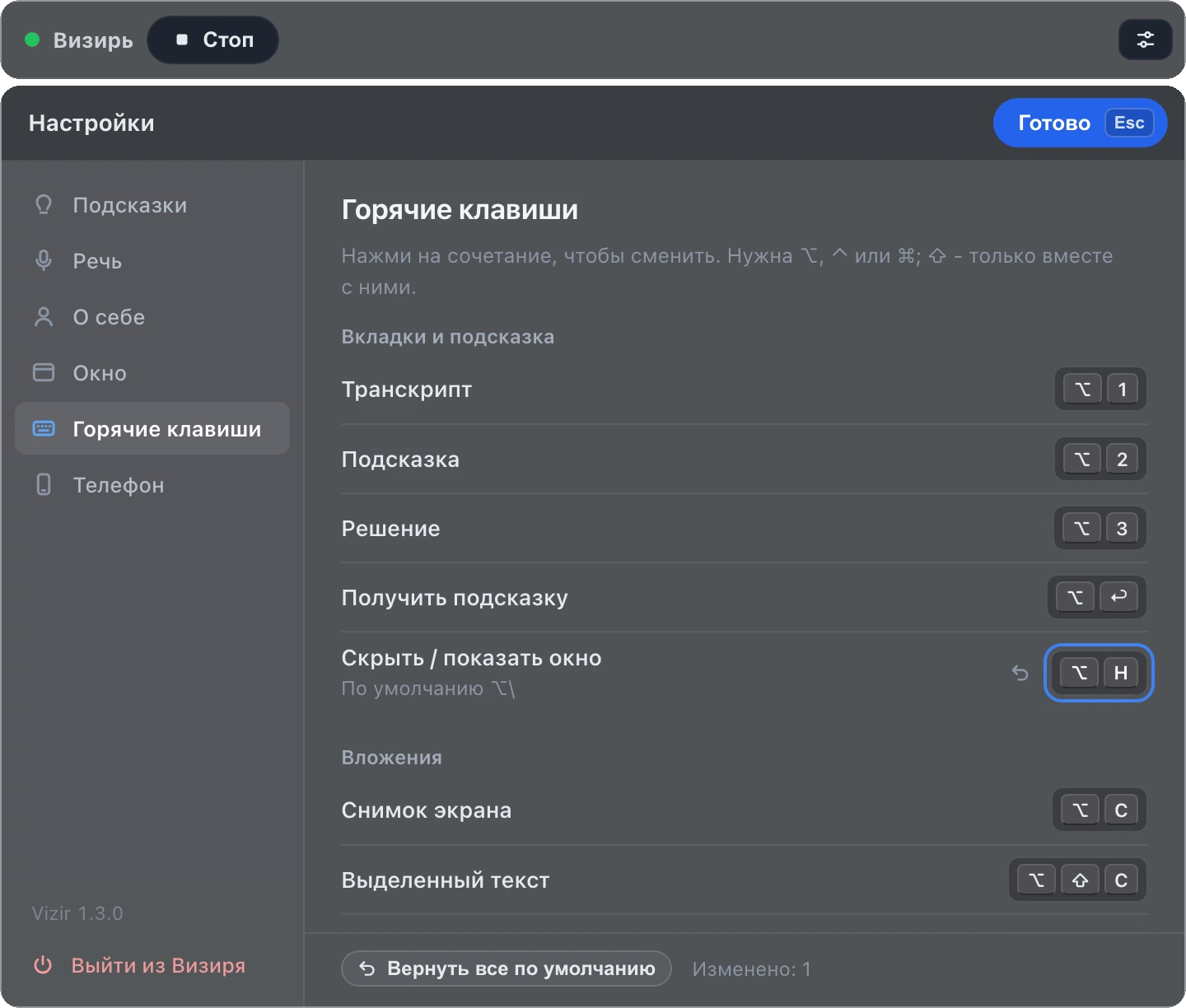
Click the gear in the bar, then “Настройки” (Settings) → “Горячие клавиши” (Hotkeys). Actions are grouped: “Вкладки и подсказка” (Tabs and hint), “Вложения” (Attachments), “Ответ и код” (Answer and code), “Положение и размер” (Position and size). Each action has its shortcut next to it.
How to reassign a shortcut
- Click the shortcut next to the action you want. The button switches to recording, and a note appears under the action name: waiting for a new shortcut, Esc to cancel.
- Press the new shortcut. If it's allowed and free, it's saved right away.
- The changed action now shows its default under its name, plus an arrow that brings the default back.
At the bottom of the section there's a counter of changed shortcuts and “Вернуть все по умолчанию” (Reset all to default), which resets all your shortcuts at once.
Once you change a shortcut, the hints inside the window show yours. For example, the “⌥E объяснить” (⌥E explain) hint above an answer will show whatever key you assigned.
Which shortcuts are allowed
There's one rule: a shortcut has to include ⌥, ⌃ or ⌘ - on Windows, Alt, Ctrl or Win. ⇧ (Shift) only counts together with them. A single key isn't enough, and for a good reason: otherwise it would stop typing in every app, including the editor you're coding in during the interview.
You can assign a letter, a digit, an arrow, F1-F12, plus Enter, Tab, Space and punctuation keys. Esc can't be taken - it cancels recording.
Shortcuts that belong to the system or to other apps are off limits. On a Mac that's, for example, ⌘C, ⌘V, ⌘Q, ⌘Tab; on Windows, Ctrl+C, Alt+Tab, Alt+F4 and combos with the Win key. Try one of those and Vizir won't accept it - it tells you it's a system or app shortcut and asks you to pick another.
If a shortcut is already taken
If the shortcut you picked belongs to another Vizir action, the app won't overwrite it silently. You'll see which action already uses it and what that action would get if you swap the two. There are two buttons: “Поменять местами” (Swap) and “Отмена” (Cancel).
All actions and default shortcuts
Tabs and hint
| Action | macOS | Windows |
|---|---|---|
| Transcript | ⌥1 | Alt+1 |
| Hint | ⌥2 | Alt+2 |
| Solution | ⌥3 | Alt+3 |
| Get a hint | ⌥↩ | Alt+Enter |
| Hide / show window | ⌥\ | Alt+\ |
| Emergency quit | none | Alt+Shift+Q |
Attachments
| Action | macOS | Windows |
|---|---|---|
| Screenshot | ⌥C | Alt+C |
| Selected text | ⌥⇧C | Alt+Shift+C |
| Clear attachments | ⌥⇧⌫ | Alt+Shift+Backspace |
Answer and code
These keys work in Hint and Solution.
| Action | macOS | Windows |
|---|---|---|
| Line up / down | ⌥↑ / ⌥↓ | Alt+↑ / Alt+↓ |
| Select up / down | ⌥⇧↑ / ⌥⇧↓ | Alt+Shift+↑ / Alt+Shift+↓ |
| Explain selection | ⌥E | Alt+E |
| Copy | ⌥V | Alt+V |
| Scroll code left / right | ⌥← / ⌥→ | Alt+← / Alt+→ |
In Transcript, line up and down simply scroll the conversation. Copy takes the selected lines or, with nothing selected, the whole code.
Position and size
| Action | macOS | Windows |
|---|---|---|
| Move window | ⌥W ⌥A ⌥S ⌥D | Alt+W Alt+A Alt+S Alt+D |
| Window size | ⌥+ / ⌥- | Alt and + / Alt and - |
Windows: same keys, different names
On Windows everything works the same way, the keys just have word names: Alt instead of ⌥, Shift instead of ⇧, Enter instead of ↩, Ctrl instead of ⌃, Win instead of ⌘. That's how the app labels them too: Alt+Enter, Alt+Shift+C.
One action exists only on Windows - “Аварийный выход” (Emergency quit), Alt+Shift+Q. Its note in the settings says it closes Vizir even when the window isn't visible. You can reassign it too. On a Mac you quit with “Выйти из Визиря” (Quit Vizir) at the bottom of the settings.
What's worth reassigning
- Get a hint. In some IDEs ⌥↩ (Alt+Enter) is the quick-fix shortcut. If you use it, give the hint a different combo so the two don't clash.
- Anything that fights your habits. If a Vizir shortcut matches a command your fingers already know, change it. Just make sure the new one works with one hand, without looking.
- Don't change keys right before an interview. Reassign ahead of time and run a couple of questions on a test call: in the real conversation your fingers should already know where to go.
If you get tangled up, “Reset all to default” puts everything back.
The rest of what's new in 1.3, including the mode where hints arrive on their own, is in the update overview.
FAQ
Can I change ⌥↩ to a different shortcut?
What happens if I pick a shortcut that's already taken?
How do I reset hotkeys to default?
Read next
Vizir 1.3: Hints Arrive on Their Own - What's New
What's new in Vizir 1.3: Auto mode that catches the interviewer's question, a wide window layout, background transparency, custom hotkeys and a crisp window at any Windows scale.
November 17, 2026Vizir Auto Mode: How It Knows a Question Was Asked
Hints without a keypress: how to turn on Auto mode in Vizir, what it listens for, when it stays quiet, when ⌥↩ is still better and how it looks in a real interview.
November 17, 2026Vizir Wide View and Transparency: Set Up the Window
Compact or wide layout, background transparency, explanations right under the lines and the monitor picker: how to fit the Vizir window to your screen and your interview.
November 17, 2026Install Vizir before you need it
Free access to start, no card required. Five minutes to set up now - and the hint is there when the call matters.